

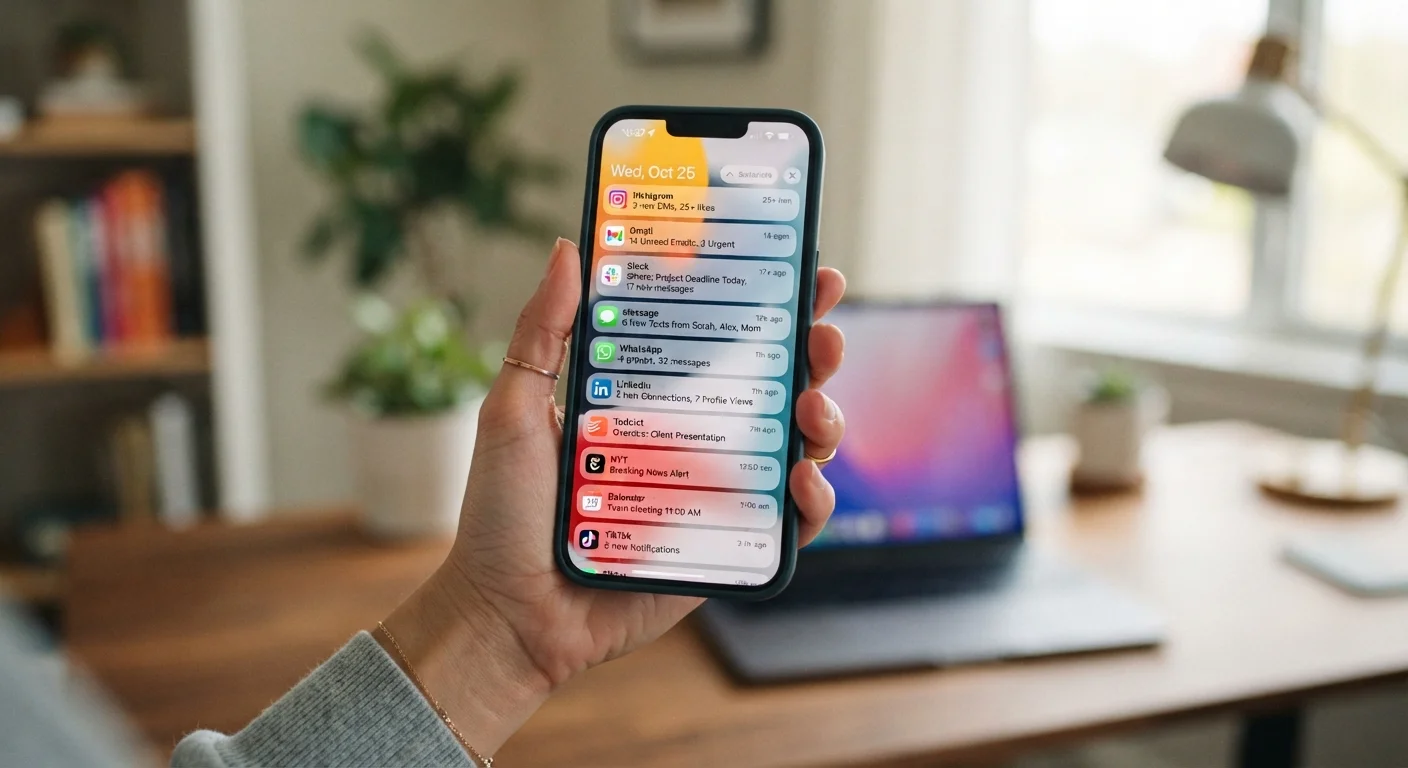
Why Your Default Settings Aren't Working for You
When you first set up a phone or install an app, notifications are almost always switched on by default. That's not an accident. App developers design default settings to maximize engagement — which means your device is quietly optimized for their goals, not yours. The result is a constant stream of interruptions that fragment attention, drain battery, and create low-level stress throughout the day.
The good news: every major mobile operating system gives you granular control over how, when, and whether apps can reach you. Most of these controls sit a few taps away, yet they're rarely explored past the basic on/off toggle. The adjustments below are the ones that make a meaningful, practical difference — and they work on both Android and iOS, though menu names vary by device.
If you're also setting up a new device for the first time, this pairs well with the broader checklist in device setup guide, which covers permissions and privacy settings from the first hour onward.
Switch from instant to scheduled delivery
Both iOS (via Notification Summary) and Android (via Scheduled Batching on supported versions) allow you to collect non-urgent notifications and deliver them at set times — say, morning and mid-afternoon. Instead of being interrupted every few minutes, you receive a digest on your own schedule.
The key step most people miss is categorizing which apps qualify as "time-sensitive." Phone calls and calendar alerts should remain instant; social media likes and promotional emails can wait hours without any real cost to you.
Batching non-urgent alerts into twice-daily digests can eliminate dozens of daily interruptions.
Disable notification badges on low-value apps
That red number sitting on an app icon is engineered to trigger a checking reflex. Notification badges — the small dot or number overlay on the app icon — keep you aware of unread counts even when you haven't been interrupted by a sound or vibration.
Go to Settings > Notifications on iOS or the individual app's notification settings on Android, and turn off the badge (sometimes called "App icon badges" or "Dots"). You'll still receive notifications; you just won't see a persistent visual reminder every time you glance at your home screen.
Removing badge counters reduces the compulsive pull to open apps you hadn't planned to check.
Audit lock screen notification visibility
By default, many apps display the full content of notifications on your lock screen — including message previews, email subjects, and health data. Anyone glancing at your phone on a desk or table can read them without unlocking the device.
In your notification settings for each app, look for a "Show on Lock Screen" toggle or a visibility option that lets you choose between showing content, hiding content, or not showing notifications on the lock screen at all. For messaging, banking, and health apps especially, setting this to "Hide content" is a straightforward privacy improvement.
Full notification previews on a lock screen expose private information to anyone nearby.
Set per-app sound and vibration profiles
Most people use a single global sound profile — either everything rings or everything is silenced. The middle path is assigning different alert styles to different apps. A banking app might warrant a sound; a news app probably doesn't need to vibrate at all.
On iOS, each app under Settings > Notifications has individual controls for sounds, vibration patterns, and alert style (banner vs. persistent vs. none). Android provides similar controls per app. Spending five minutes assigning "sound off, vibration off" to your ten least-critical apps measurably reduces the total sensory load from your device throughout the day.
Assigning silent delivery to low-priority apps reduces sensory noise without missing what matters.
Use Focus or Do Not Disturb modes with allowed contacts
Focus modes (iOS) and Do Not Disturb with exceptions (Android) let you silence most notifications while allowing calls or messages from specific people to break through. This is especially useful during work hours, meetings, or sleep.
The setting most people skip is the allowed contacts list. Without it, enabling Focus mode means potentially missing urgent calls from family. With it configured, you get the quiet of Do Not Disturb with a meaningful safety net. Both platforms also allow apps — such as a specific calendar or alarm — to be whitelisted individually.
Configuring allowed contacts makes Focus mode genuinely usable without the fear of missing emergencies.
Turn off notifications for apps you only open intentionally
Some apps don't need to push content to you because you already open them on your own terms — weather apps, note-taking tools, calculators, and most utility apps fall into this category. Yet they often request and receive notification permissions during setup, and those permissions rarely get revisited.
Periodically reviewing your full notification permissions list (under Settings > Notifications on both platforms) often reveals apps that have been sending alerts for months without you consciously noticing. Disabling these entirely is the cleanest solution — you won't lose functionality, since you were already ignoring their alerts. This also has a modest but real benefit for battery life, since background notification processes consume system resources.
Apps you open intentionally don't need permission to interrupt you — revoking it costs nothing.
Small Changes, Lasting Difference
Notification overload isn't just an inconvenience — research consistently links fragmented attention to reduced focus and increased stress. Adjusting these settings takes under 15 minutes and doesn't require any technical expertise. Think of it as a one-time investment that quietly improves every day that follows.
Make it a quarterly habit
Notification permissions accumulate over time as you install new apps. Setting a calendar reminder every three months to review your full notifications list takes about ten minutes and prevents permission creep from quietly rebuilding the clutter you just cleared. It also dovetails with keeping your apps updated — a topic covered in our guide on why software updates matter.
If you use your phone in the evenings, pairing scheduled notification delivery with a structured wind-down period can help signal your brain that the day is wrapping up. Our related guide on building a wind-down routine explores how digital boundaries fit into pre-sleep habits. And if you drive regularly, it's also worth knowing how phone notifications contribute to the broader picture covered in habits that erode driver attention.
This article is for informational purposes only. Feature availability and menu names vary by device model and operating system version. Always verify settings in your device's official documentation.
The content on this site is for informational purposes only and is not a substitute for professional advice. Always consult a qualified professional for guidance specific to your situation.